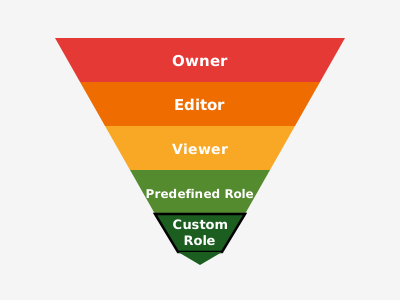
How to stop giving everything Owner and actually mean it.
Estimated Reading Time : 8m
The problem with convenience
When you’re moving fast, it’s tempting to hand out broad IAM roles. Owner on a service account because you’re not sure exactly what it needs. Editor on a project because it’s easier than figuring out the right permissions. It works, and you ship.
Then six months later you have a dozen service accounts with more access than they need, and you have no idea which ones are actually being used.
Least privilege isn’t just a compliance checkbox. It limits blast radius when something goes wrong — a leaked key, a misconfigured workload, a compromised dependency.
How GCP IAM is structured
GCP IAM has three core concepts worth internalizing:
Principals — who is being granted access. This can be a user, a group, a service account, or a domain.
Roles — a named collection of permissions. GCP has three kinds:
- Basic roles (
Owner,Editor,Viewer) — coarse-grained, avoid in production - Predefined roles — curated by GCP per service (e.g.
roles/storage.objectViewer) - Custom roles — you define exactly which permissions are included
Policies — bindings that attach a role to a principal on a resource.
The resource hierarchy matters: policies can be set at the organization, folder, project, or individual resource level. Permissions are inherited downward, so a role granted at the project level applies to all resources within it.
Start with predefined roles
Before reaching for custom roles, check if GCP already has what you need. Most services have well-scoped predefined roles.
For example, if a service needs to read objects from a Cloud Storage bucket:
roles/storage.objectViewer
Not roles/storage.admin. Not Editor. Just read access to objects.
The IAM permissions reference lists every permission and which predefined roles include it.
When to use custom roles
Use a custom role when predefined roles either grant too much or bundle unrelated permissions. A common case is a CI/CD service account that needs to push images and deploy to Cloud Run, but nothing else.
gcloud iam roles create ciDeployer \
  --project=my-project \
  --title="CI Deployer" \
  --permissions=artifactregistry.dockerImages.upload,run.services.update \
  --stage=GA
Keep custom roles narrow. If you find yourself adding more than 10-15 permissions, question whether the role is doing too much.
Service accounts in practice
Every workload that talks to GCP should have its own service account. Avoid reusing service accounts across services — when you need to audit or rotate, you want clean boundaries.
A few rules to follow:
Grant roles on the resource, not the project where possible. Instead of giving a service account roles/storage.objectViewer at the project level, grant it on the specific bucket it needs:
gcloud storage buckets add-iam-policy-binding gs://my-bucket \
  --member="serviceAccount:my-sa@my-project.iam.gserviceaccount.com" \
  --role="roles/storage.objectViewer"
Prefer Workload Identity over key files. Service account keys are credentials that can leak. If your workload runs on GKE, Cloud Run, or a GCE instance, use Workload Identity or the default metadata server instead. No key file to rotate, no key file to accidentally commit.
Audit regularly. GCP’s IAM Recommender surfaces service accounts and principals that have permissions they haven’t used in the past 90 days. It’s a useful starting point for tightening things up.
gcloud recommender recommendations list \
  --project=my-project \
  --location=global \
  --recommender=google.iam.policy.Recommender
A practical starting point
When setting up a new service, I follow this order:
- Start with no permissions and add only what’s needed to make it work
- Use a predefined role if one fits closely enough
- Create a custom role if predefined roles are too broad
- Bind the role at the lowest resource level that makes sense
- Use Workload Identity instead of key files whenever the platform supports it
It takes a few extra minutes upfront. It saves a lot of pain later.