You need to hit a Cloud SQL instance from your laptop. It’s in a private VPC with no public IP. Here’s how to get there.
Estimated Reading Time : 7m
The problem
Your Cloud SQL instance is configured with a private IP only — no public access. This is the right security posture for production, but it means you can’t connect directly from your local machine with psql or your application.
You need two things:
- A way to reach the private network (SSH into a GCE instance in the same VPC)
- A way to authenticate with Cloud SQL (Cloud SQL Proxy)
Combine them with SSH local port forwarding and you get a secure tunnel from localhost to your private database.
The setup
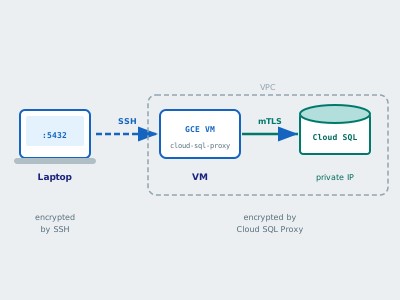
The architecture looks like this:
laptop:5432 ──SSH tunnel──▶ GCE VM:5432 ──Cloud SQL Proxy──▶ Cloud SQL (private IP)
Your laptop forwards local port 5432 through an SSH connection to a GCE VM. On that VM, Cloud SQL Proxy is listening on port 5432 and handling authentication and encryption to the Cloud SQL instance.
Prerequisites
- A GCE instance in the same VPC as your Cloud SQL instance
- The
cloud-sql-proxybinary installed on the GCE instance - The GCE instance’s service account needs the
Cloud SQL Clientrole (roles/cloudsql.client) - SSH access to the GCE instance (via
gcloud compute sshor standard SSH keys) - Your Cloud SQL instance’s connection name (found in the Cloud Console under the instance’s overview page — format:
project:region:instance-name)
Step 1: Start Cloud SQL Proxy on the VM
SSH into your GCE instance and start the proxy:
gcloud compute ssh my-vm --zone us-east1-a
On the VM, run Cloud SQL Proxy listening on port 5432:
cloud-sql-proxy --port 5432 my-project:us-east1:my-database
The proxy authenticates using the VM’s service account and opens a secure connection to the Cloud SQL instance. It listens on localhost:5432 on the VM.
To run it in the background:
cloud-sql-proxy --port 5432 my-project:us-east1:my-database &
Step 2: SSH local port forward from your laptop
Open a new terminal on your laptop and create the tunnel:
gcloud compute ssh my-vm --zone us-east1-a -- -L 5432:localhost:5432 -N
Breaking this down:
gcloud compute ssh my-vm— SSH into the VM using gcloud (handles keys and project config)--— separates gcloud flags from SSH flags-L 5432:localhost:5432— forward local port 5432 to port 5432 on the VM (where Cloud SQL Proxy is listening)-N— don’t execute a remote command, just forward the port
If port 5432 is already in use locally (e.g., a local Postgres instance), use a different local port:
gcloud compute ssh my-vm --zone us-east1-a -- -L 15432:localhost:5432 -N
Step 3: Connect from your laptop
With the tunnel open, connect to localhost as if the database were running locally:
psql -h localhost -p 5432 -U myuser -d mydb
Or with a connection string:
psql "postgres://myuser:mypassword@localhost:5432/mydb?sslmode=disable"
SSL is disabled in the connection string because Cloud SQL Proxy already handles encryption between the VM and Cloud SQL. The SSH tunnel encrypts the laptop-to-VM leg.
This also works with any database tool — DBeaver, DataGrip, pgAdmin, or your Go application:
db, err := sql.Open("postgres", "postgres://myuser:mypassword@localhost:5432/mydb?sslmode=disable")
Putting it in a script
If you do this regularly, wrap it in a script:
#!/bin/bash

PROJECT="my-project"
ZONE="us-east1-a"
VM="my-vm"
INSTANCE="my-project:us-east1:my-database"
LOCAL_PORT=5432
REMOTE_PORT=5432

echo "Starting Cloud SQL Proxy on ${VM}..."
gcloud compute ssh ${VM} --zone ${ZONE} --command \
    "cloud-sql-proxy --port ${REMOTE_PORT} ${INSTANCE} &" &

sleep 3

echo "Opening SSH tunnel on localhost:${LOCAL_PORT}..."
gcloud compute ssh ${VM} --zone ${ZONE} -- \
    -L ${LOCAL_PORT}:localhost:${REMOTE_PORT} -N
Troubleshooting
“Connection refused” on localhost:5432 — the SSH tunnel is up but Cloud SQL Proxy isn’t running on the VM, or it’s listening on a different port. SSH into the VM and verify with ss -tlnp | grep 5432.
“Permission denied” from Cloud SQL Proxy — the VM’s service account doesn’t have the Cloud SQL Client role. Check with:
gcloud projects get-iam-policy my-project \
    --flatten="bindings[].members" \
    --filter="bindings.role:roles/cloudsql.client"
“Address already in use” on local port — something is already listening on that port locally. Use a different local port (-L 15432:localhost:5432) and connect to localhost:15432.
Tunnel drops after inactivity — SSH closes idle connections. Add -o ServerAliveInterval=60 to your SSH command to send keepalive packets:
gcloud compute ssh my-vm --zone us-east1-a -- \
    -L 5432:localhost:5432 -N -o ServerAliveInterval=60
Security notes
This approach is secure at every hop:
- Laptop → VM: encrypted by SSH
- VM → Cloud SQL: encrypted by Cloud SQL Proxy (mutual TLS)
- No public IP on Cloud SQL: the database is never exposed to the internet
- IAM-based auth: Cloud SQL Proxy uses the VM’s service account — no database passwords stored on the VM
The weakest link is SSH access to the VM. Use OS Login or IAM-based SSH keys instead of manually managed SSH keys, and restrict SSH access with firewall rules to known IP ranges.